joeyi
WHITE PAPER · OCTOBER 2026
joeyi Keyboard
Scan, speak and type from one Android keyboard.
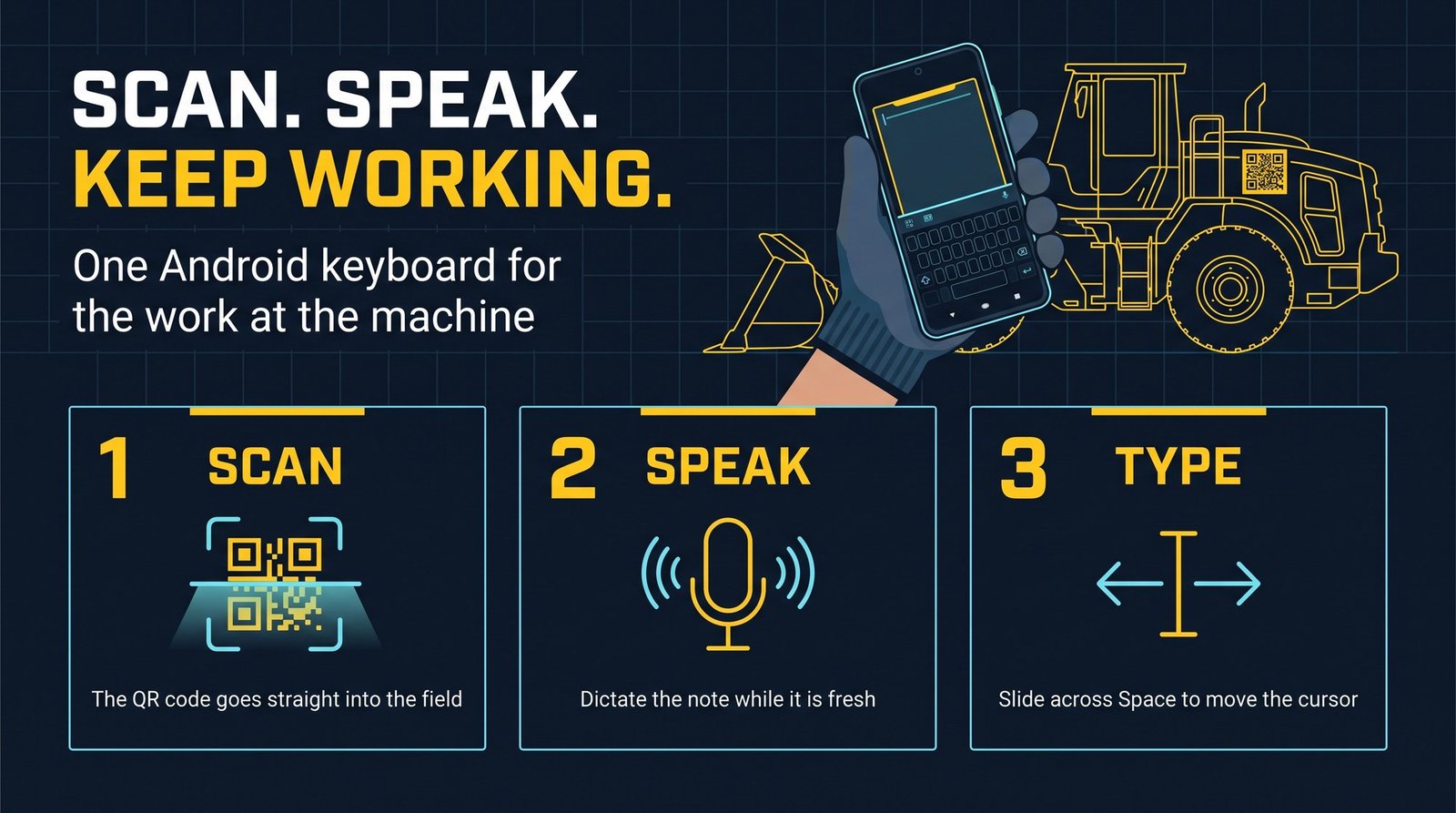
joeyi Keyboard is an Android keyboard that puts QR scanning, speech-to-text and cursor control next to everyday typing. It works in compatible text fields in the apps you already use, so an asset number or an inspection note goes into the field without retyping.
- What it is
- An Android keyboard from JMEAM Consulting LLC, in active development.
- What it does
- Scans a QR code into the active field, turns speech into text, and moves the cursor from the Space key.
- Where it works
- Compatible text fields in Android apps.
- Who it is for
- Anyone doing asset checks, warehouse lookups or inspection notes on a phone.
The problem
Checking a vehicle or a piece of equipment starts with finding it in an app, and that usually means retyping its number from a label. The note that follows is best captured while the detail is fresh, but it has to be typed on a phone at the machine. joeyi Keyboard takes those two steps off the keyboard keys and leaves the rest of your typing where it was.
How it works
Find the asset without retyping its number.
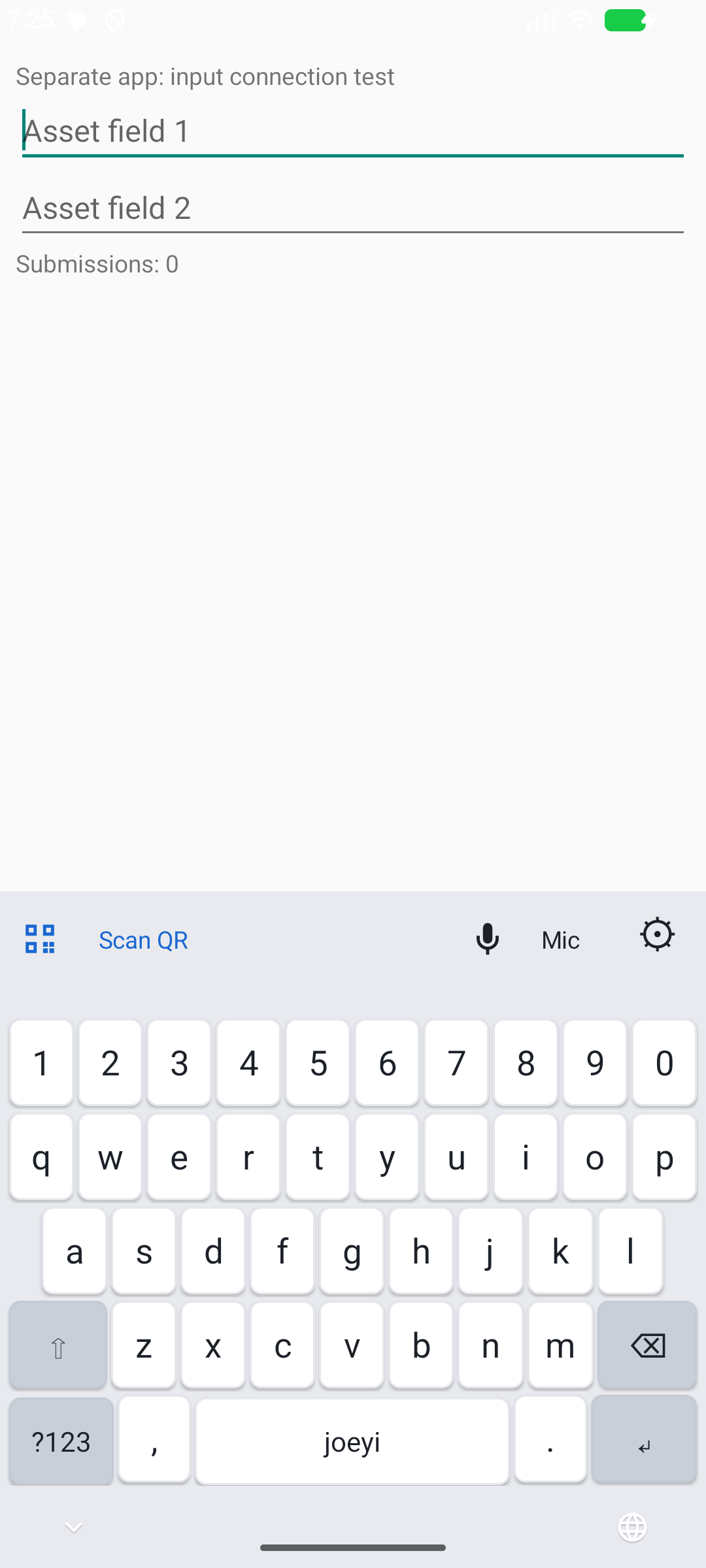
Tap the active text field, select Scan QR on the keyboard, and aim at the label. joeyi inserts the QR code’s text into the field.
Capture the note while the detail is fresh.
During an inspection, tap Mic and dictate your observation. The recognized speech becomes text in your note field, ready to review and correct.
Put the cursor where you need it.
Slide your thumb across the Space key to move the cursor, then fix the detail. Letters, numbers and symbols stay available for the rest of the note.
Beyond asset checks
A warehouse may have barcode labels without a dedicated inventory app. In a compatible search or entry field, joeyi can help bring a supported label’s value into the task without retyping it.
Comfort
- Dark or light
- Choose the appearance you prefer.
- Adjustable height
- Pick a keyboard height that feels comfortable.
- Scan controls
- Use the flashlight when you need more light, with sound and vibration feedback on a successful scan.
What you need
- An Android device.
- An app with compatible text fields.
- For scanning: a QR code that contains the asset number itself.
- For dictation: microphone access and speech recognition support on the device.
Limits
- It is designed for compatible text fields in Android apps.
- Label-format support depends on the keyboard scanner. Review the value before using it.
- Scanning text does not connect to or update an inventory database automatically.
- Speech recognition depends on microphone access and recognition support on the device.
- The keyboard is in development, so details may change.
Next step
Tell me about the work you want to make easier. I’m Joey McDougal, and I build practical tools around the way people work.