joeyi
WHITE PAPER · OCTOBER 2026
eAM Scheduling Tool
Your weekly maintenance scheduling workbench.
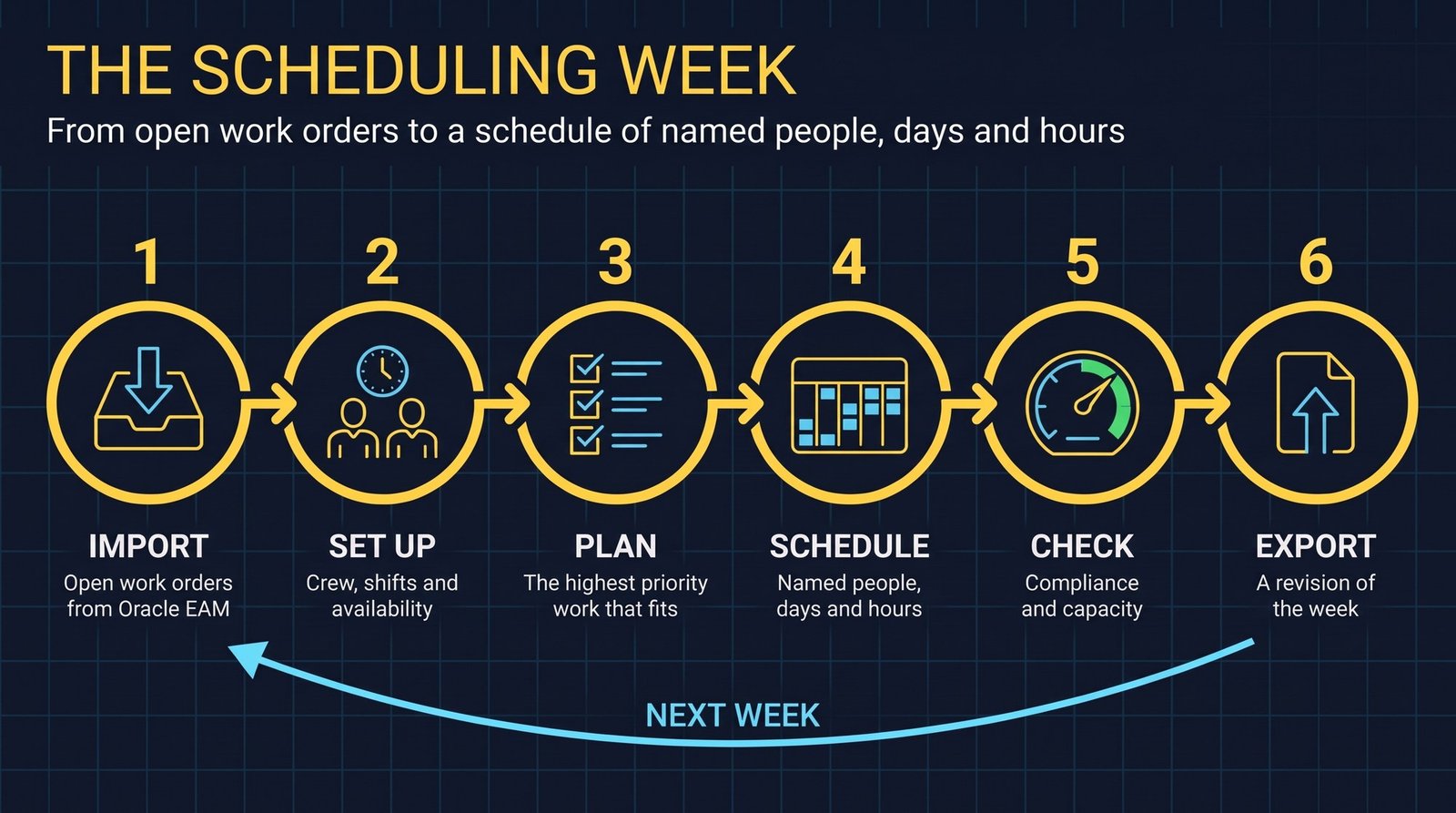
The eAM Scheduling Tool turns this week’s open work orders into a schedule of named people, days and hours. It is one file that runs in your browser, and your schedule stays on your own PC. The week follows five moves: import, plan, schedule, check and export.
- What it is
- A weekly maintenance scheduling workbench in one file that runs in your browser.
- What goes in
- This week’s open work order extract from Oracle EAM, and your crew with their shifts.
- What comes out
- A printed weekly schedule for supervisors and crews, and an export that is a revision of that week.
- Where the data lives
- On your own PC.
The problem
Each week a planner has a list of open work orders and a crew with shifts, vacation, training and limited hours. The schedule has to match the two: the highest priority work, booked to named people, on days they are working, without overbooking anyone.
How the week works
Import
Drop in this week’s open work order extract from Oracle EAM. The tool reads every work order, with its location, department, priority and due dates, and shows you what it loaded. Pick your location in the filter bar, so you only see your own work.
Set up
Add each employee or contractor, with their craft, supervisor and location. Workers live in the tool, so you only create them once. Give each person a shift, use availability for vacation, training or short days, and set department defaults and craft hours so capacity matches the people you really have.
Plan
Plan Week lists every open work order by priority. Check the ones you want, or use Confirm Top N to take the highest priority work that fits your crew. Auto-Sched books the remaining hours to named workers, respecting shifts, availability and dependencies.
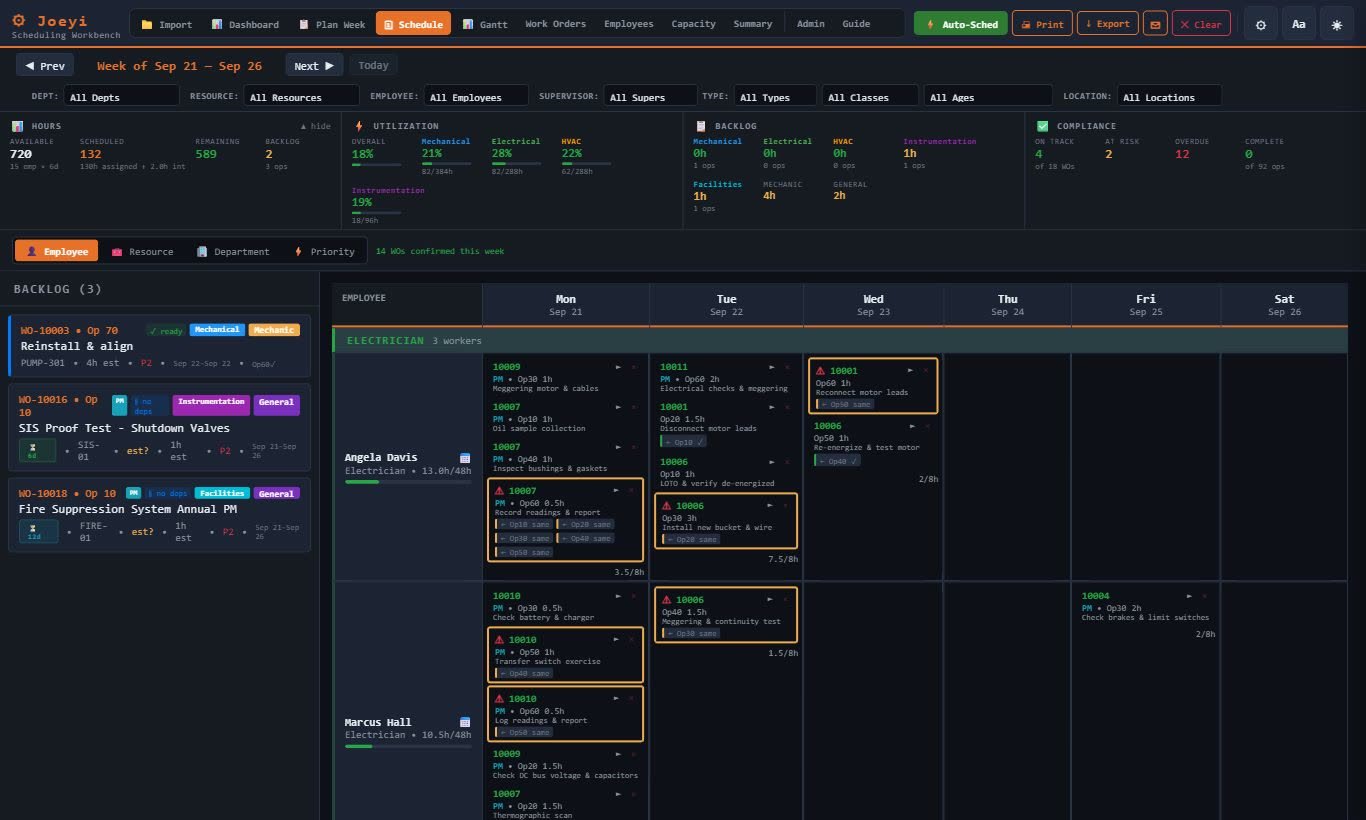
Schedule
The Schedule board shows each employee by day. Drag a work order from the backlog onto a person and a day. Once it is booked, it leaves the backlog. Switch between the employee, resource, department and priority views, or see the week as a Gantt timeline.
Check
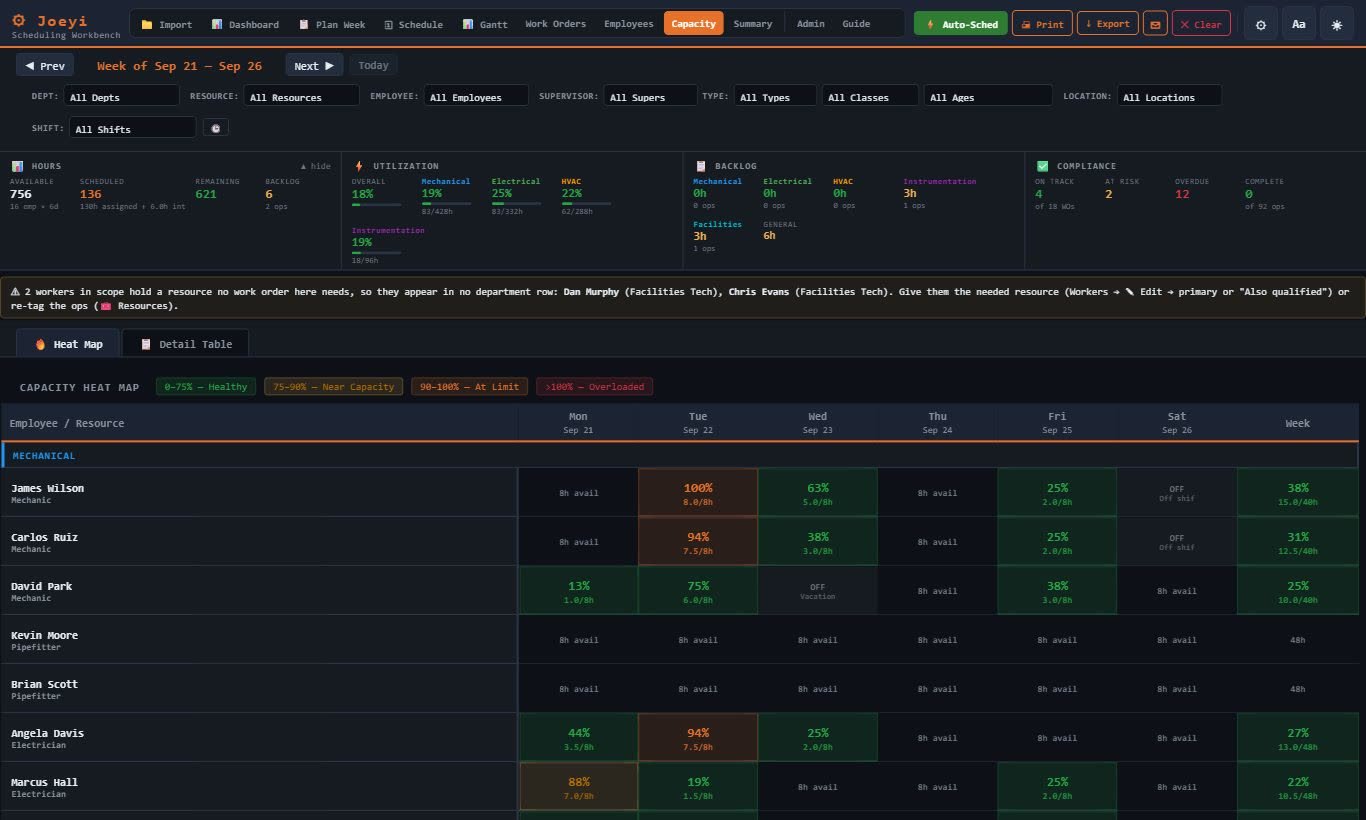
The Dashboard shows schedule compliance, PM compliance, utilization and backlog in weeks. Capacity shows hours booked against hours available, for every person and every day. Red means someone is overbooked.
Export
Print the weekly schedule for your supervisors and crews, then export. Every export is a revision of that week. When you load next week’s extract, the tool asks you to export first, so nothing is lost, and it carries your estimates and edits forward.
Details worth knowing
- Overtime
- If you book someone outside their shift, the tool warns you and marks those hours as overtime.
- Long jobs
- Long jobs are spread across back-to-back days for the same person.
- Duplicates
- If the same person lands on the same job twice in one day, the tool merges them into one.
- Compliance
- Schedule compliance counts only work booked to named people.
- Looking back
- Load an earlier export, and the tool reopens the plan exactly as it was.
What you need
- A browser. The tool is one file that runs in it.
- The open work order extract from Oracle EAM for the week.
- Your crew: employees and contractors, with craft, supervisor, location and shift.
Limits
- It works from an extract you load each week, not a live connection to Oracle EAM.
- Your schedule stays on your own PC. Export each week so that week is kept as a revision.
- The screens in this paper show sample data.
Next step
Tell me about the work you want to make easier. I’m Joey McDougal, and I build practical tools around the way people work.